
Introduction
Massive import allows you to efficiently update your indicator values using an Excel file. You generate a template, fill it in, then upload it for validation and integration. You only see the entities and indicators you have access to and can actually edit.
Bulk update the scorecard of a single entity
Use this entry point to generate a template and update the values of a specific entity.
-
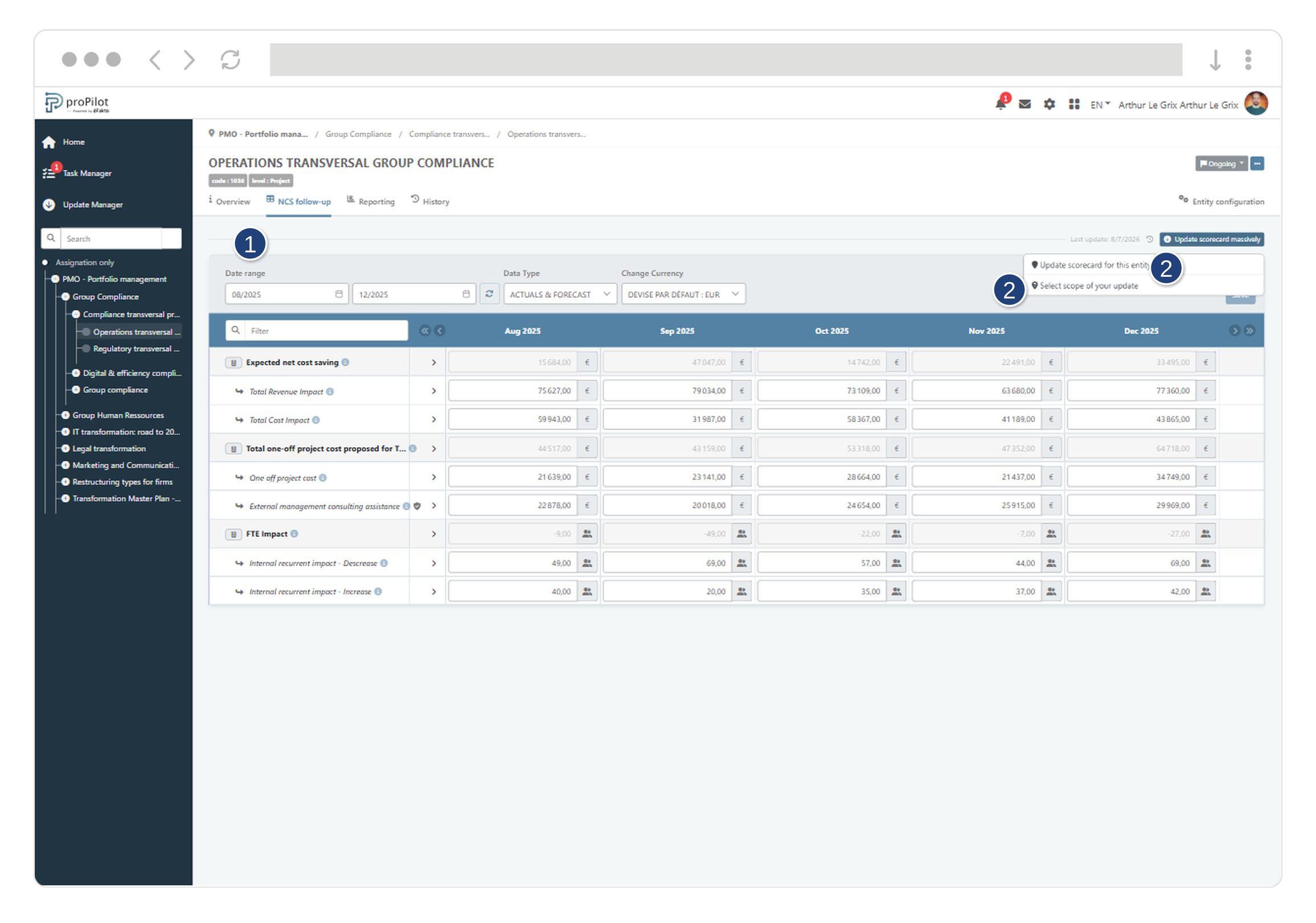
Open the target entity and go to the Scorecard tab.
-
Click “Update the scorecard”.
-
Generate an import template:
-
Select the indicators you want to update. Only the indicators that are actually visible for the selected entity are available.
-
-
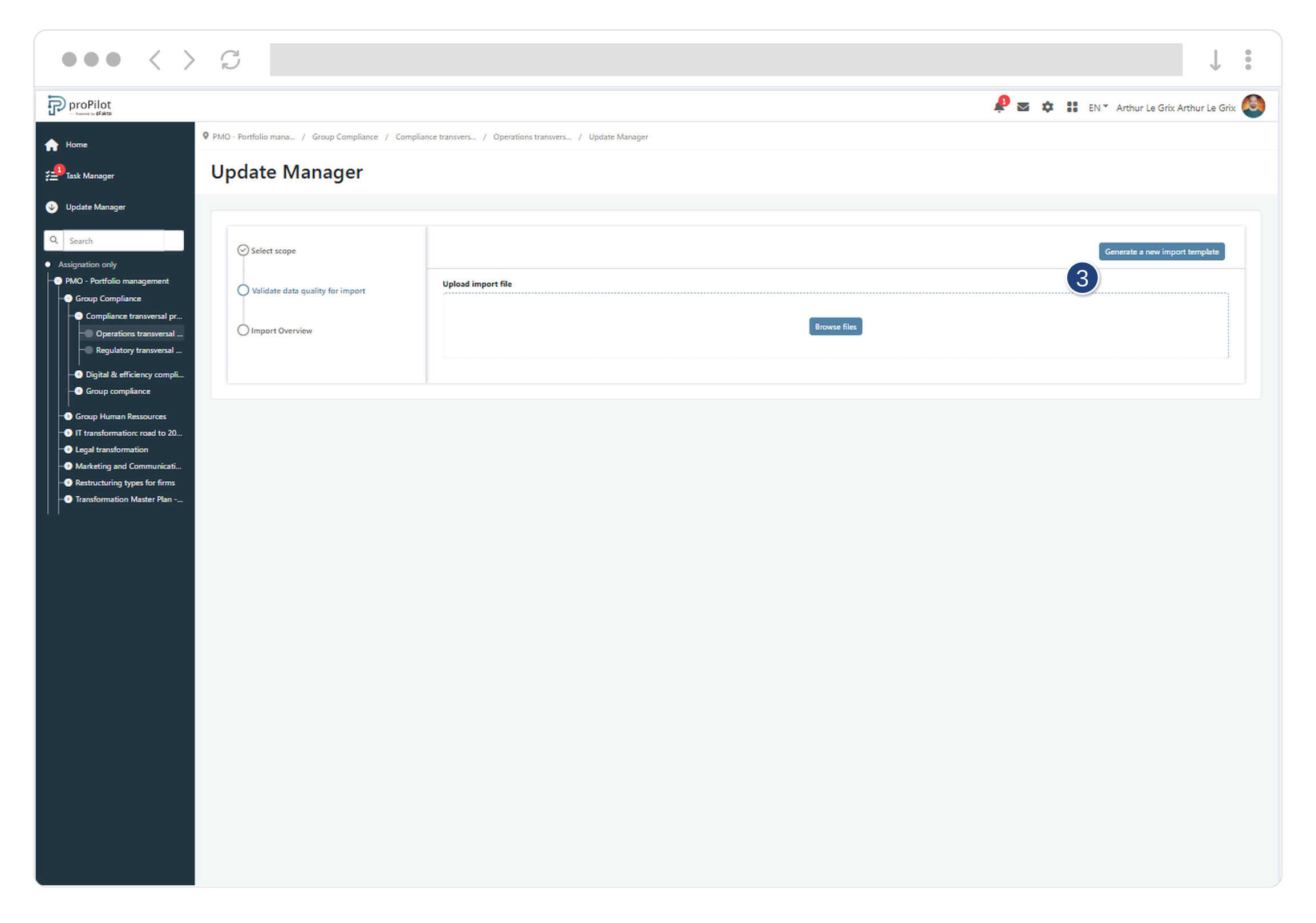
Download your Excel template. Your Excel template is automatically populated with rows for each available indicator, and with columns per period to allow updates for the selected indicators.
-
Complete your Excel file.
-
Upload the file and validate data quality.
-
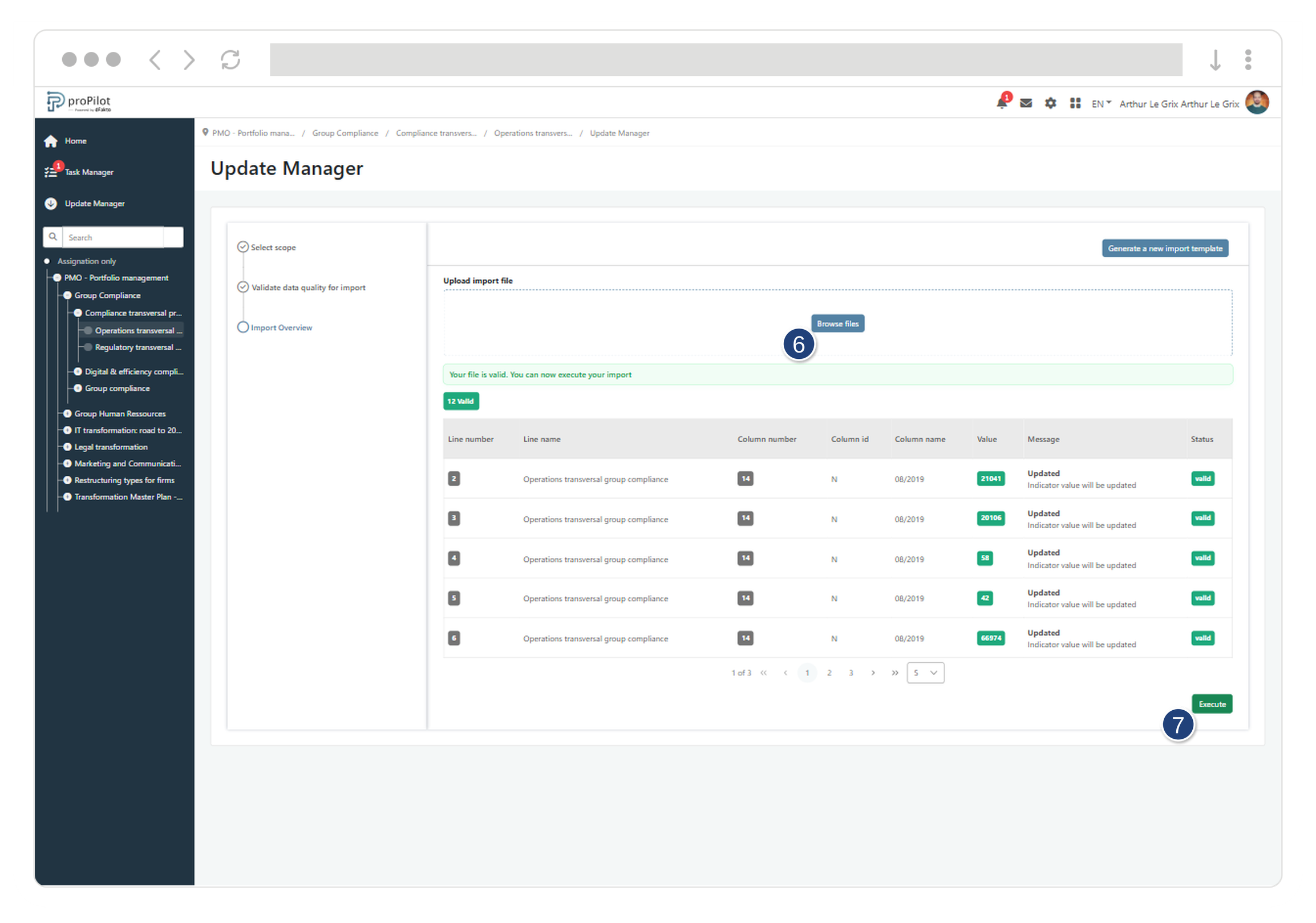
The data quality control displays a status per row and explicit error messages in case of issues (format, period, permissions, etc.).
-
-
Click “Execute” to save valid values.
Use the Update Manager to update indicators for many entities at the same level
This entry point lets you generate a template for a set of entities within a level, and then update each selected entity.
-
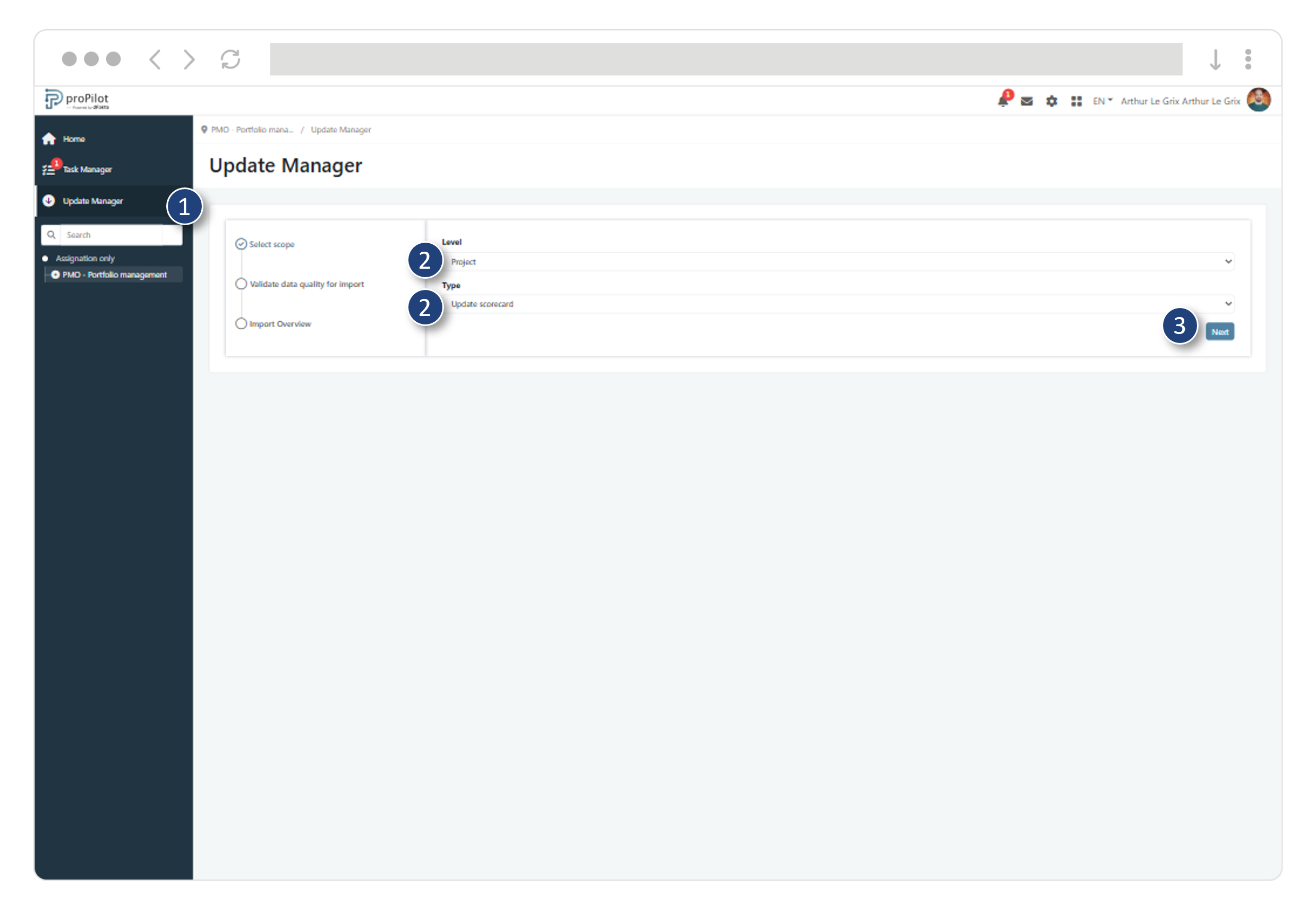
Open the Update Manager menu.
-
Select the level and choose the import type “Update scorecard”.
-
Click “Next”.
-
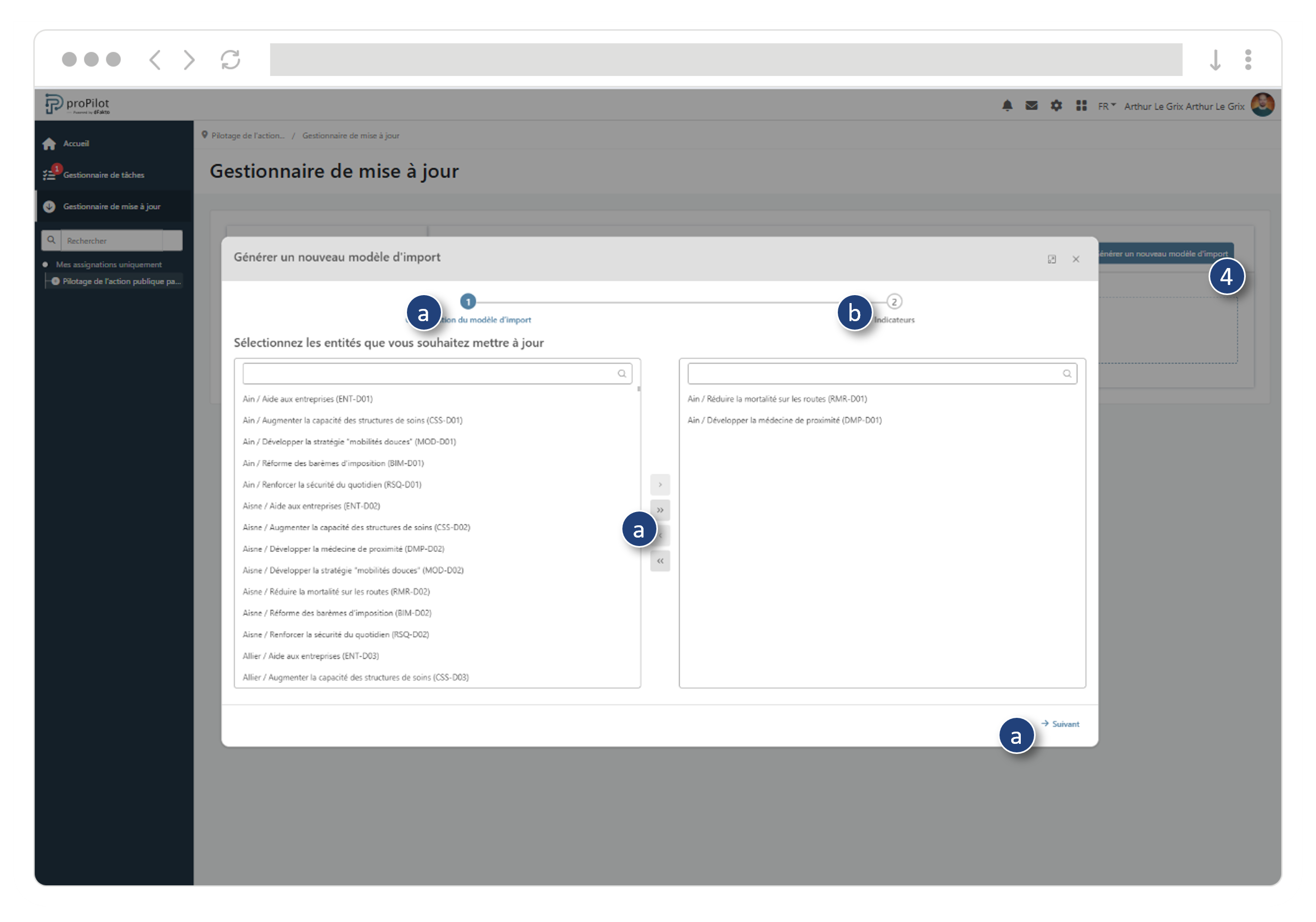
Click “Generate a new import template” and follow the steps:
-
Select the entities to update (you only see those available in your scope and for which the scorecard is active).
-
Select the indicators. Only the indicators that are actually visible for the selected entities are available.
-
-
Download, complete, and upload the file.
-
Validate data quality, then run the import. The updates are saved.