
Global user administration allows you to manage, from a central place, user access and capabilities across your entire proPilot environment. You can assign users to the relevant instances, verify their access by logging in as them, deactivate their account, edit their main information, and generate API keys to secure integrations with third-party tools.
Assign a user to one or more instances
From Global Administration, you can attach a user to the instances where they need to work. This gives them access to the right environments before configuring more detailed rights or responsibilities within each instance.
-
In Global Administration, open the Users module from the left menu.
-
In the user list, find the relevant user and click Current assignments.
-
The assignments panel opens. Add the instance or instances the user must access.
-
Save your changes.
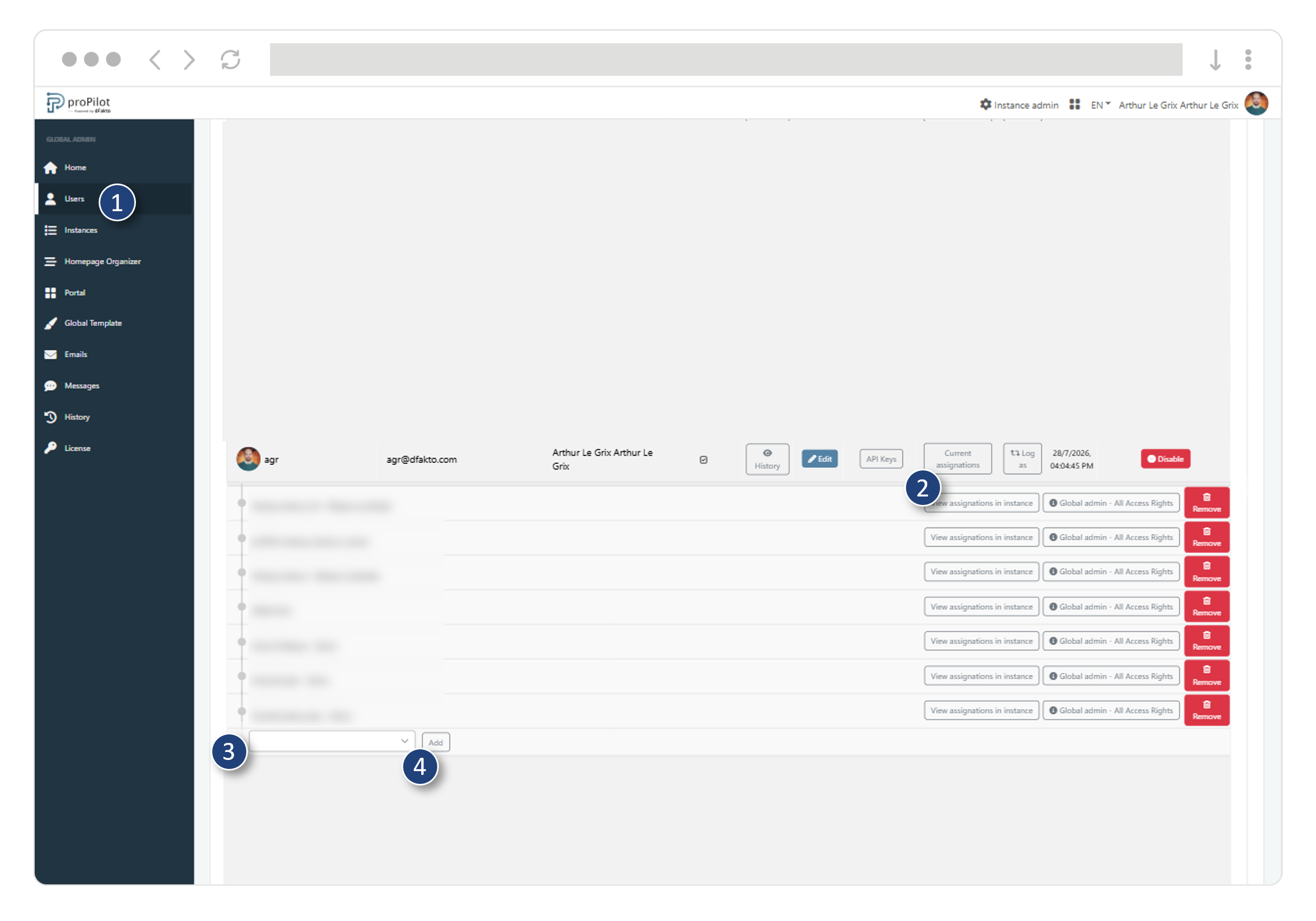
Note: assigning a user to an instance does not replace assigning them to “Users” information fields carrying specific rights, which can then be configured within that instance.
Log in as a user to verify their access
The “Log as” feature allows a global administrator to view proPilot with a user’s effective rights. It is especially useful to check an access scope, confirm an instance assignment, or reproduce a situation reported by a user.
-
In Global Administration, open the “Users” module from the left menu.
-
In the user list, find the relevant user.
-
Click the “Log as” button on their row.
-
You will access proPilot with that user’s view and permissions. Check the visible workspaces, accessible menus, and available actions.
-
Once your check is complete, click the user name in the top-right corner and click “Log back as…" to return to your standard view.
.svg?cb=3077f3cdff031554b1209f129744d3f8)
Deactivate a user globally
When a user should no longer access proPilot, the global administrator can deactivate their account directly from Global Administration. This removes their access to the application across their entire scope.
-
In Global Administration, open the “Users” module from the left menu.
-
In the user list, find the relevant user.
-
Click the “Disable” button on their row.
-
A confirmation modal opens.
-
Confirm the deactivation.
Once the user is disabled, they can no longer log in to proPilot. If needed, their access can later be restored using the same procedure.
Create API keys for a user
Global administrators can generate API keys for users who need to connect proPilot to a third-party tool or automate specific uses. The access granted uses the same rights scope as the user it is attached to.
-
In Global Administration, open the “Users” module from the left menu.
-
Find the relevant user in the list and click the “API Key” button on their row.
-
In the existing keys panel, click “Create API Key”.
-
Enter the key name and expiration date.
-
Click “Save” to generate the key.
-
A modal appears with the generated credentials. Immediately copy the secret key and the client, then store them in a secure place.
The technical credentials are automatically generated by proPilot. For security reasons, the secret key cannot be displayed again once the modal is closed.