
This document describes the manual procedure for installing MariaDB, but you can skip it if you use the supplied docker-compose file. See containerized deployment documentation: proPilot installation and configuration | Containerized deployment
Install MariaDB on the target machine
If you don’t use a containerized approach, install the application manually. See official documentation.
https://mariadb.com/docs/server/server-management/install-and-upgrade-mariadb
☝️ The latest version with verified compatibility is 11.8.2
Make sure MariaDB accepts ANSI quotes
proPilot uses ansi quotes as table delimiters so mariaDB must be configured to accept them.
If it is not already the case, follow the steps below:
-
Find the configuration file location by following the documentation : https://mariadb.com/kb/en/configuring-mariadb-with-option-files/
-
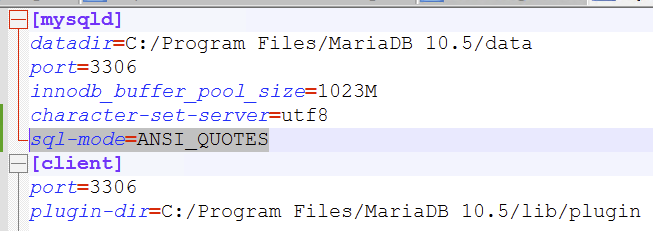
Open the my.ini file with a text editor
-
add the following line under the [mysqld] section:
sql-mode=ANSI_QUOTES
-
Restart the MariaDB service
Create proPilot DB
This step is not required for an upgrade procedure, since the DB is not dropped automatically, but when installing the application for the first time, you must create a database manually.
In your favorite database tool, create a MariaDB database.
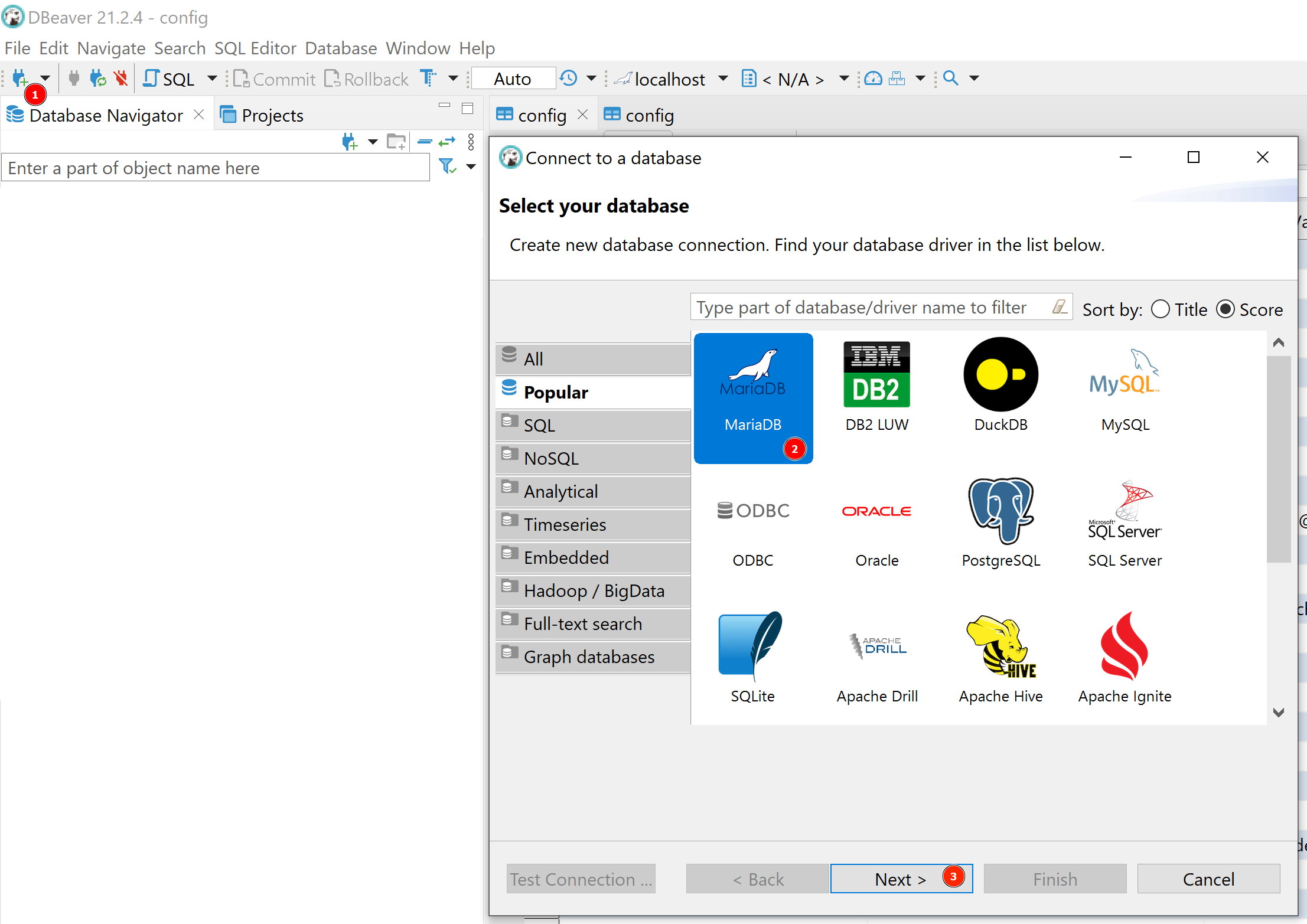
It is also important to select the correct charset and collation. Any other value may impact the application.

Create proPilot user
In order to restrict access for the proPilot application on the database server, we recommend creating a dedicated user.
CREATE USER 'propilot'@'localhost' IDENTIFIED BY 'XXX';
-
Replace XXX by a strong password
-
Replace localhost by the hostname of proPilot server if the database is installed on another server
By default, proPilot need elevated privileges in order to be able to create databases itself (one per proPilot instance). If your MariaDb is also used by other applications, consider restricting access to the proPilot user.
# NOTE: full access to MariaDB
GRANT ALL PRIVILEGES ON *.* TO 'propilot'@'localhost';
# Restricted access to MariaDb
GRANT ALL PRIVILEGES ON `propilot\_%`.* TO 'propilot'@'localhost';
Replace localhost by the hostname of proPilot server if the database is installed on another server
With the restricted approach, you must ensure that you prefix all your instances (technical) name by 'propilot_' when you create a new instance via the proPilot interface