Introduction
ProPilot can be configured to feed your IT systems. To do so, you simply need to set up the webhook in proPilot: all updates can then be communicated to your different IT systems.
Set up a new webhook
To send information from proPilot to an IT system, it is necessary to set up associated webhooks.
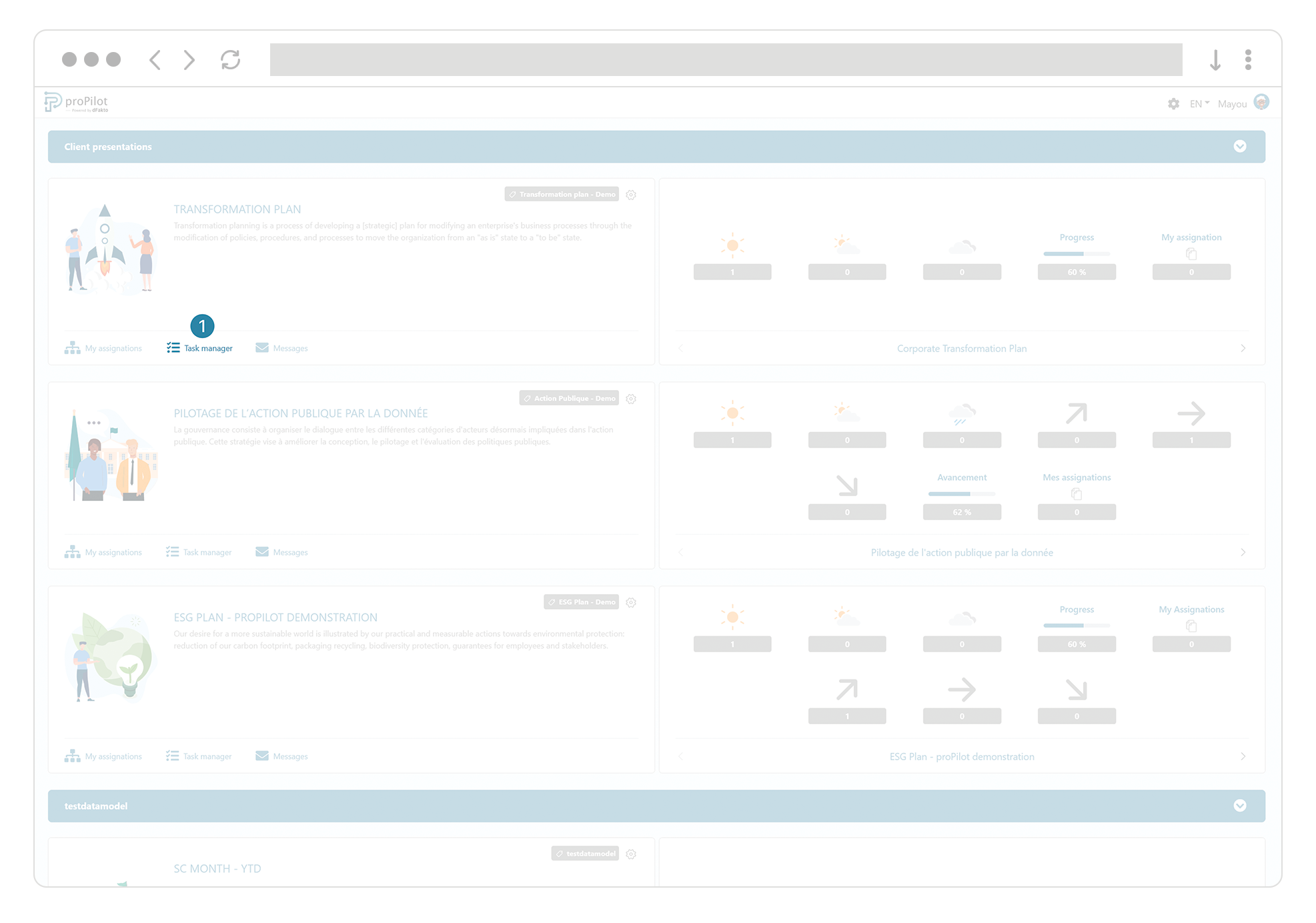
When you are on the homepage, navigate to the task manager by clicking on "task manager" in your workspace.
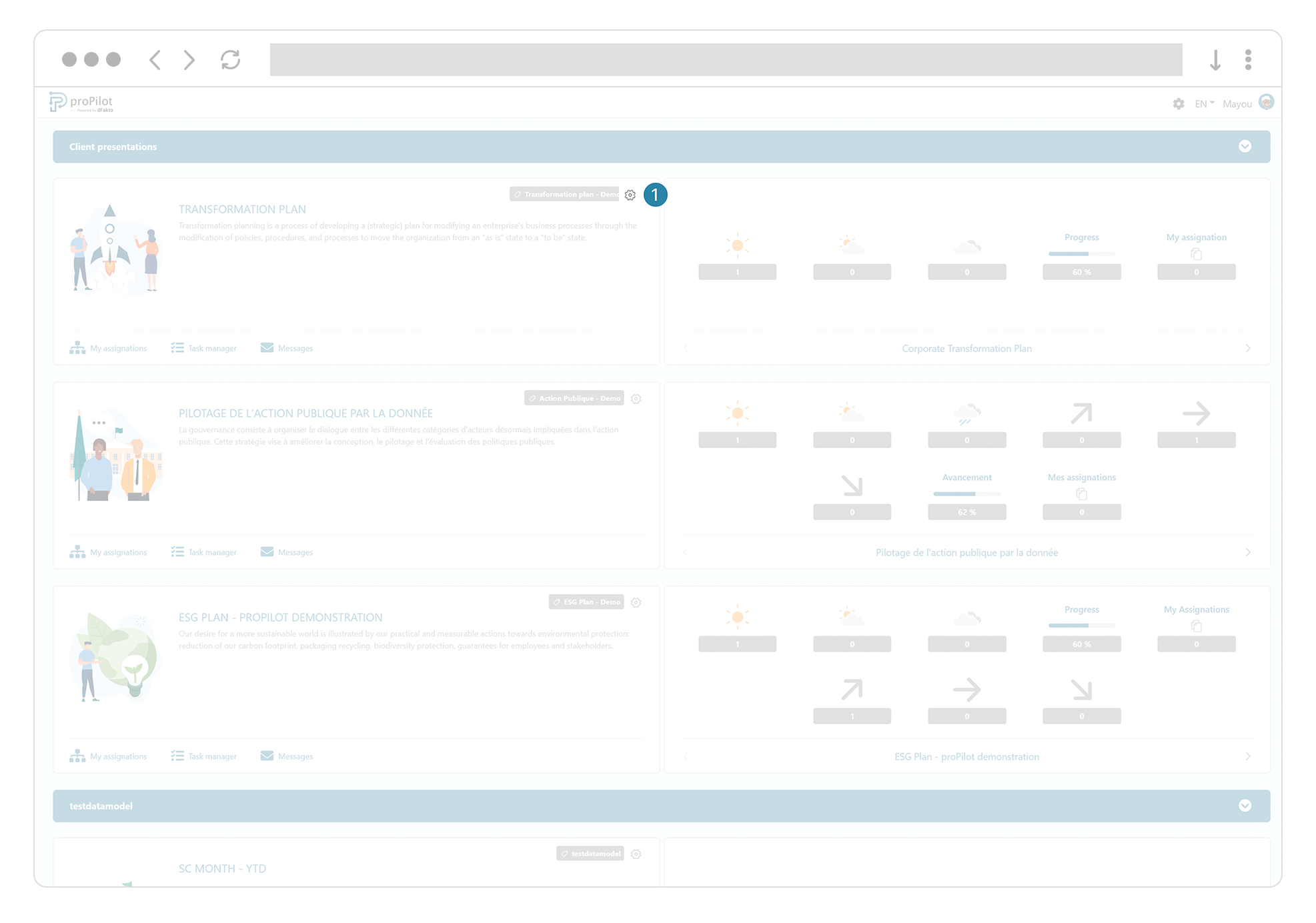
From the homepage, select the gear icon of the dedicated workspace.
In the "external components" menu, select the first tab "Event Manager".
You will see a section presenting a summary of the webhooks in place and a second section allowing you to monitor their activity.
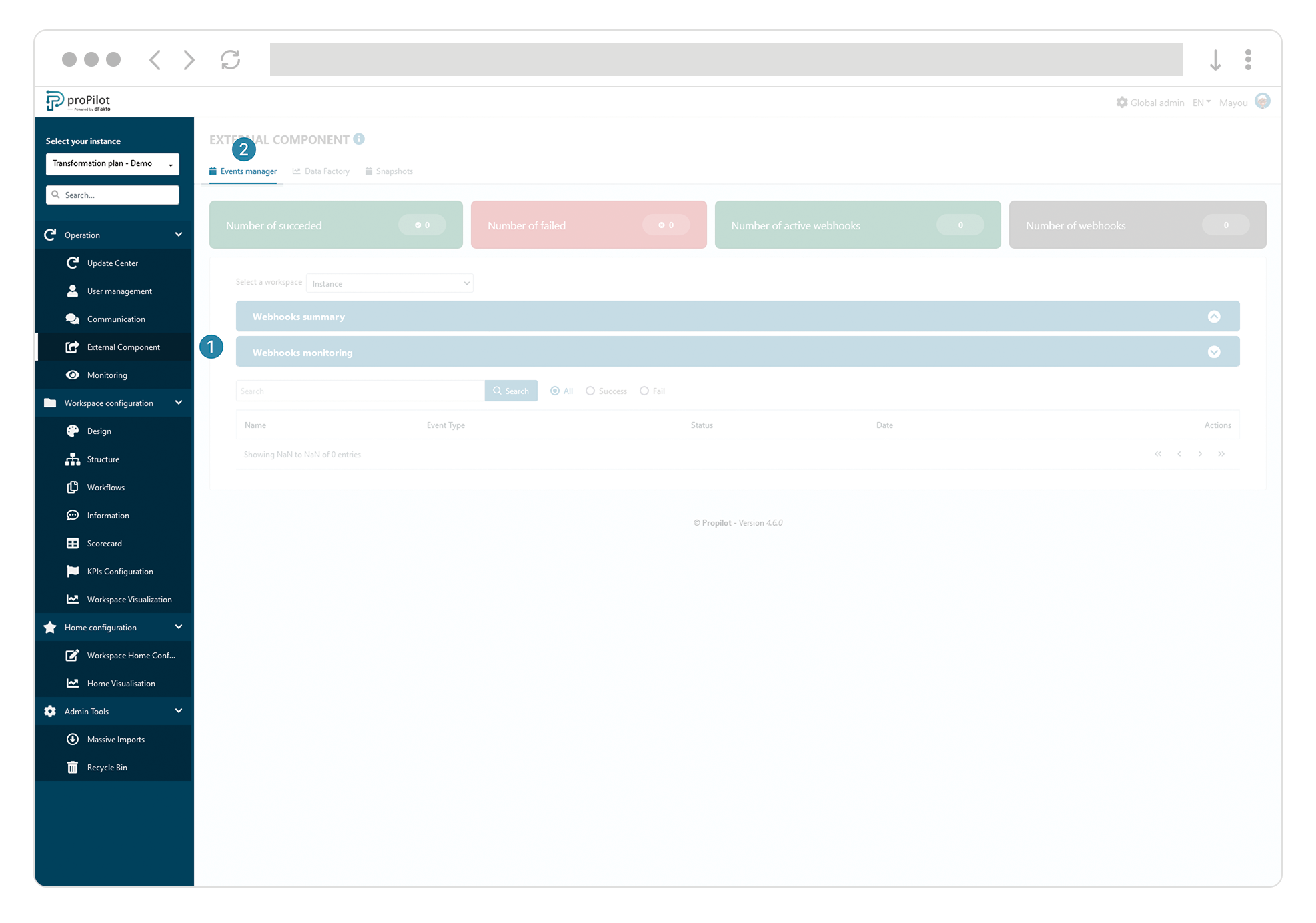
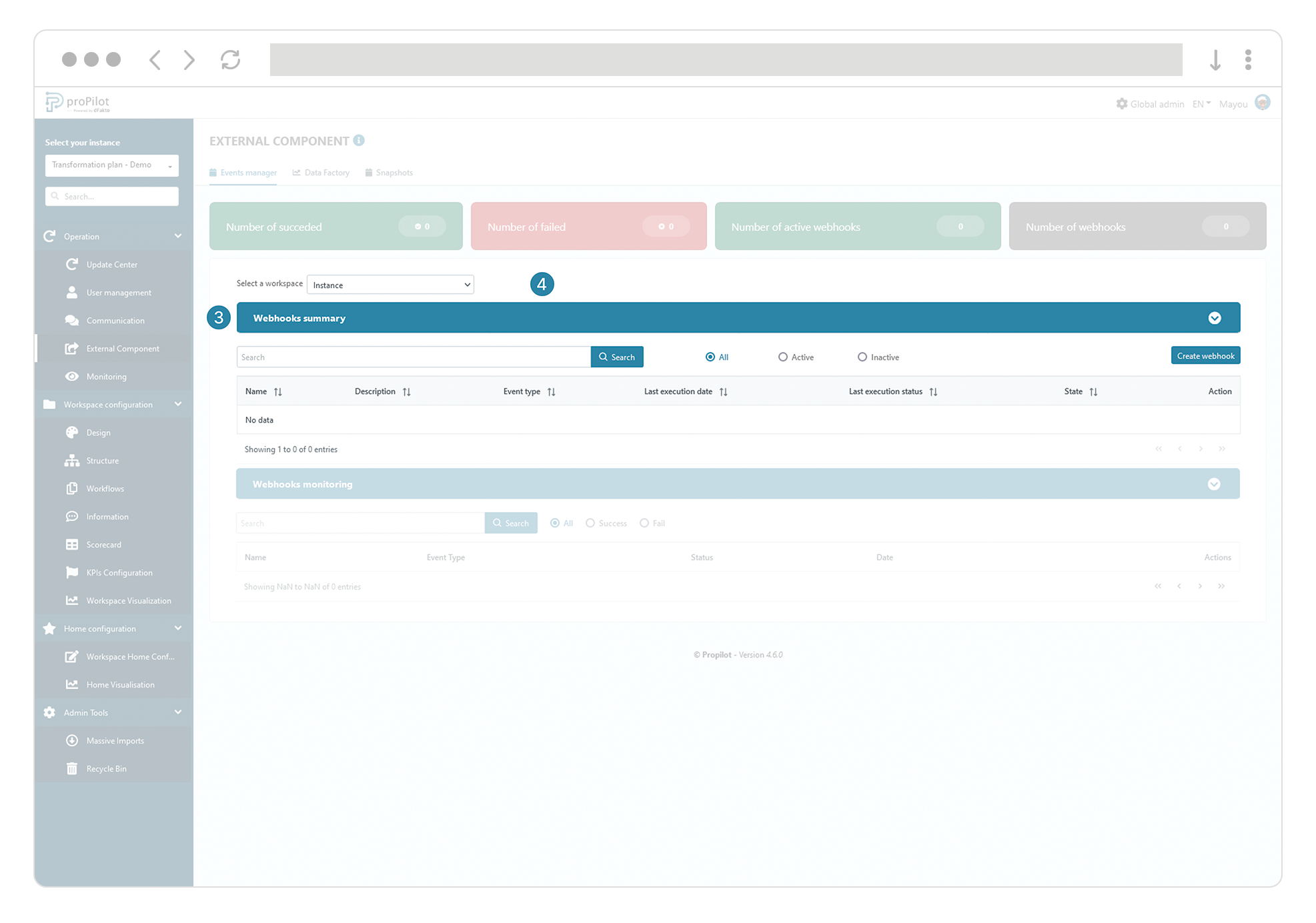
Open the "summary of webhooks" section.
To create new proPilot webhooks, two options are available. If you want to set up a webhook that returns information for the entire instance, select "instance" from the drop-down list. If you want to only send information from one of the workspaces in your instance, select the relevant workspace from this drop-down list.
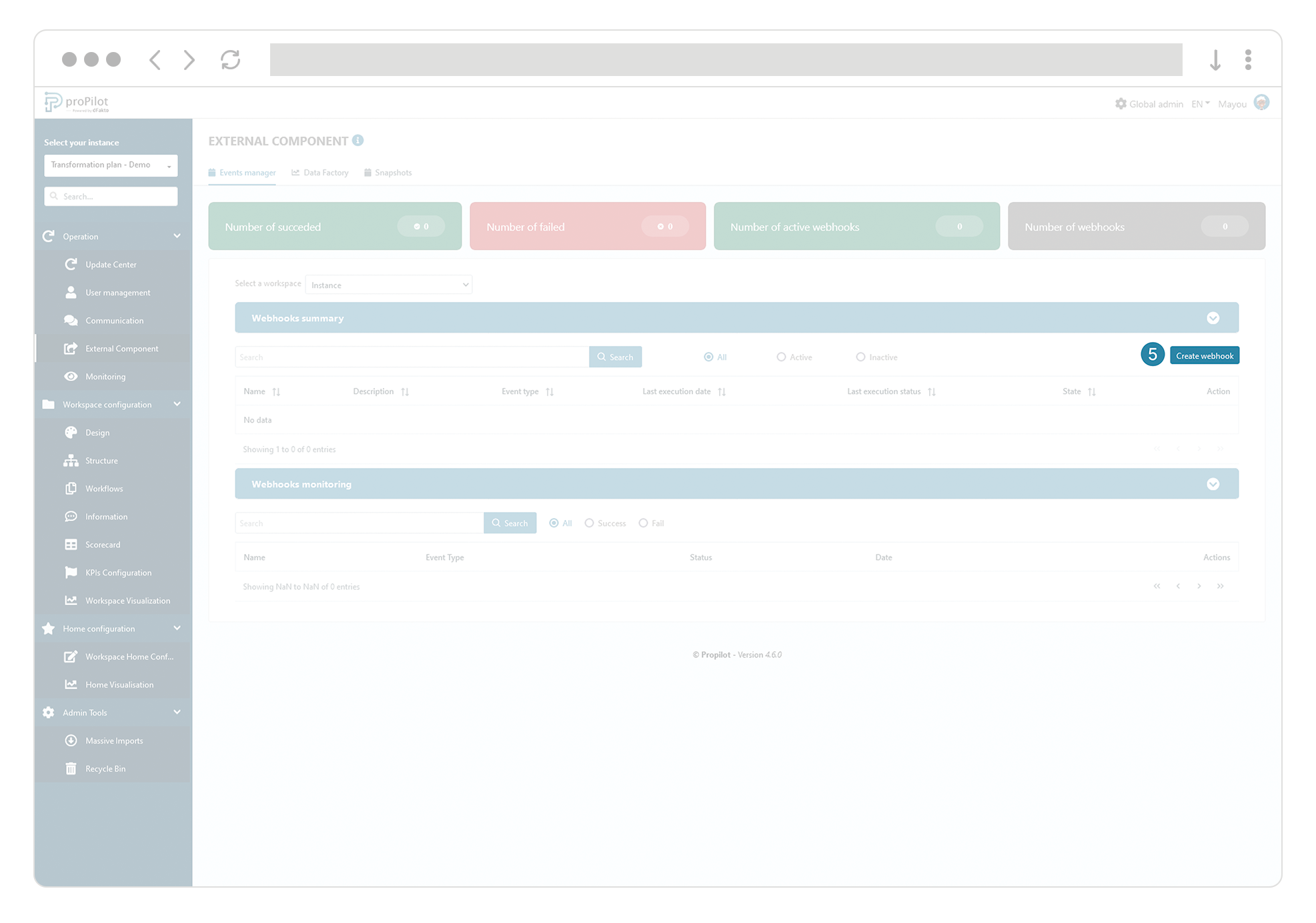
Click on "create a webhook".
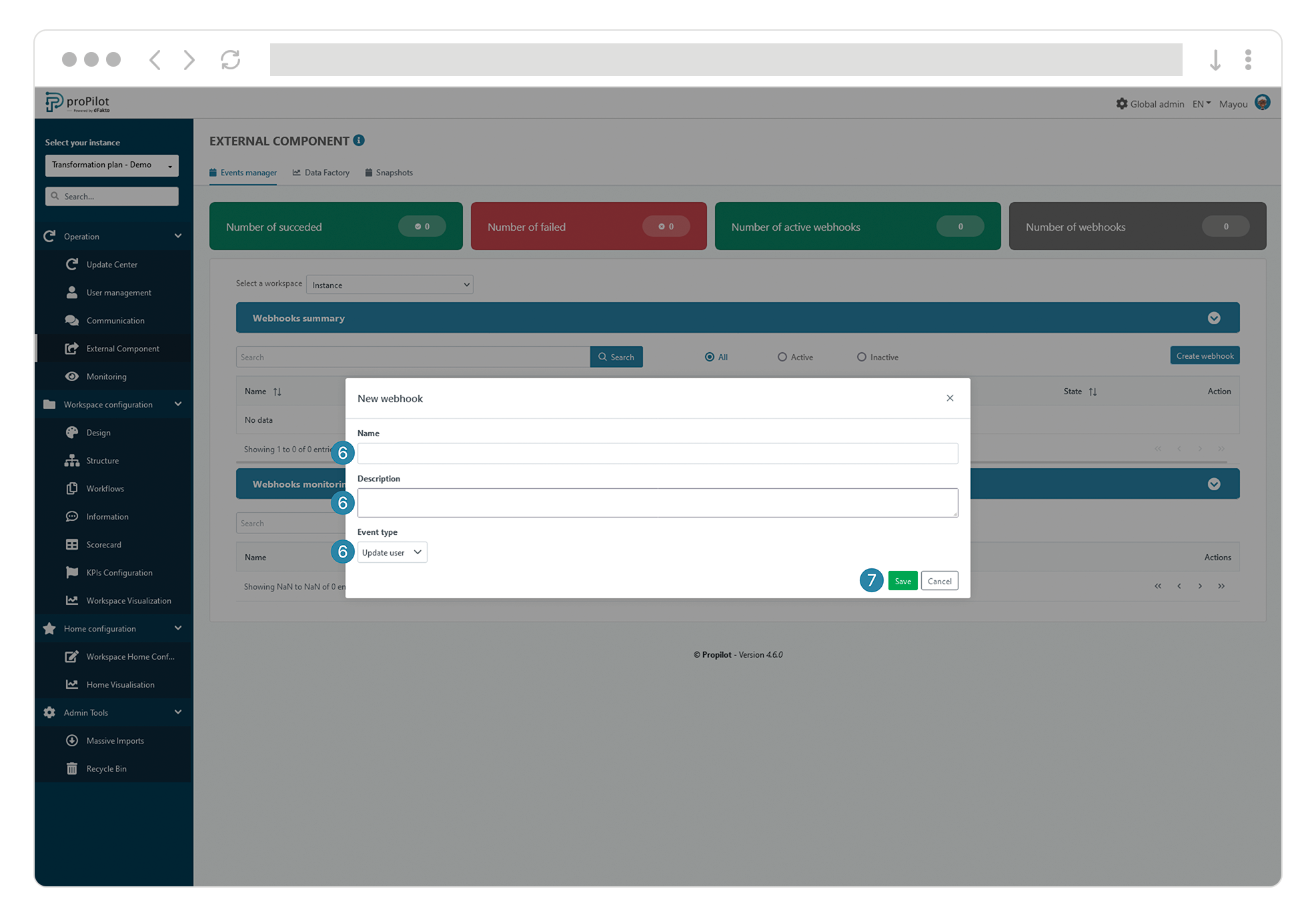
Define a name and a description, and then select the type of events you want this webhook to send:
-
User updates
-
User creation
-
User deletions, etc.
Save.
Congratulations! You have just created a new webhook. Navigate to the next section to enable it.
Edit your webhook settings
To configure your webhooks, click on the "edit" button for the relevant webhook in the "webhook summary" section.
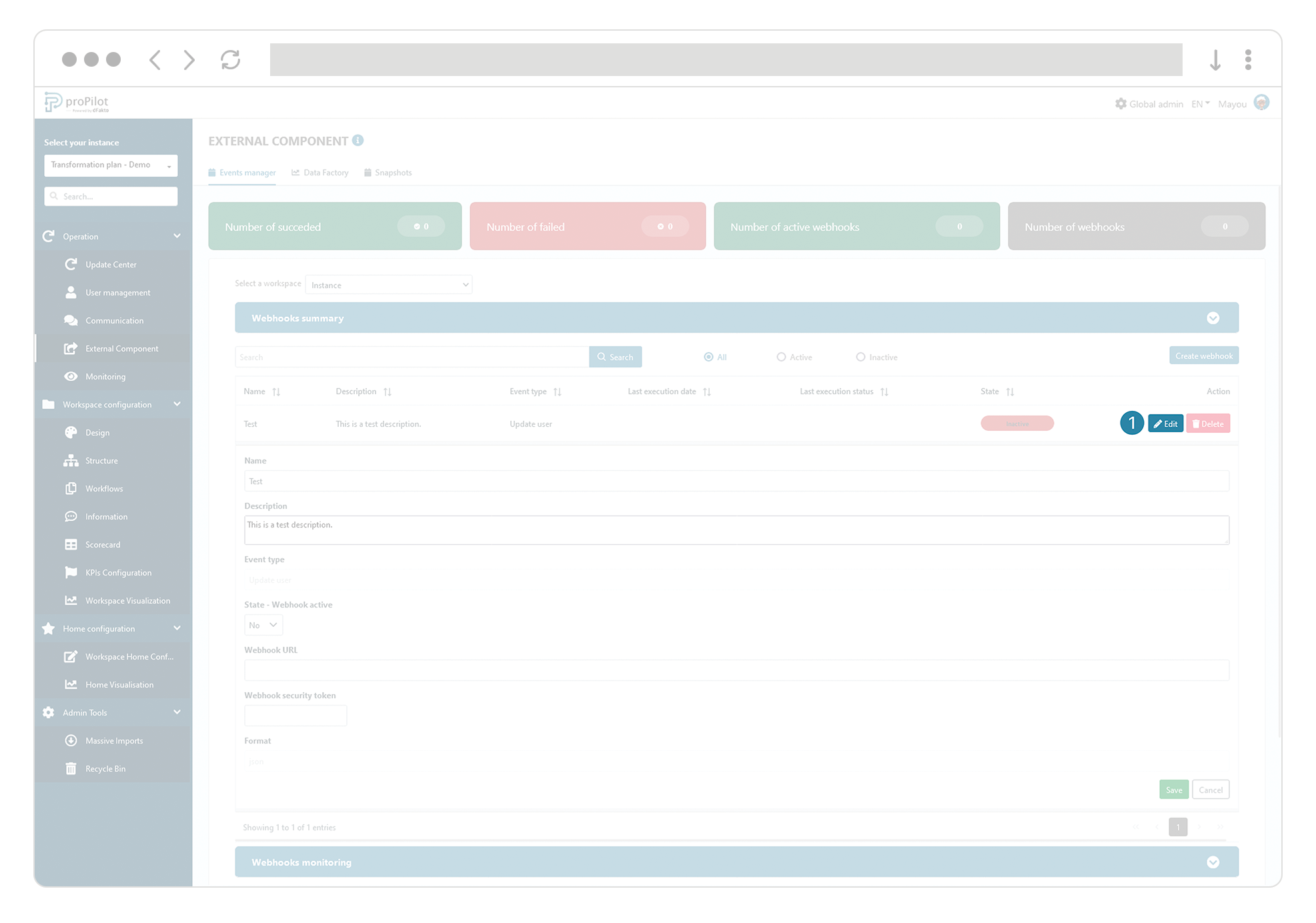
Activate your webhook using the "Status - Active webhook" field.
Define a target URL to which the webhook will be sent and integrate a security token of your choice.
Save.
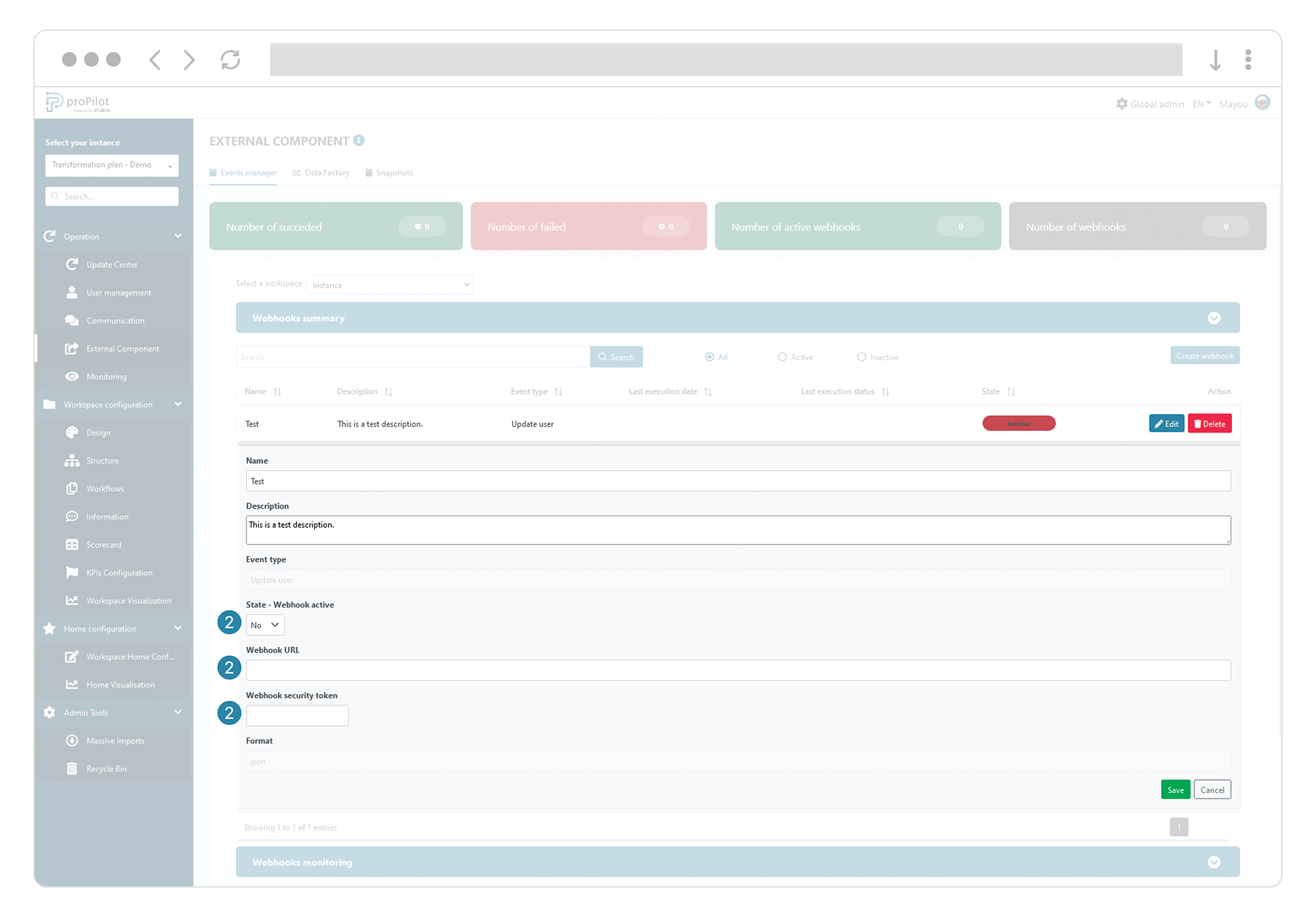
Congratulations, your webhook configuration is complete.
Monitor your webhook activity
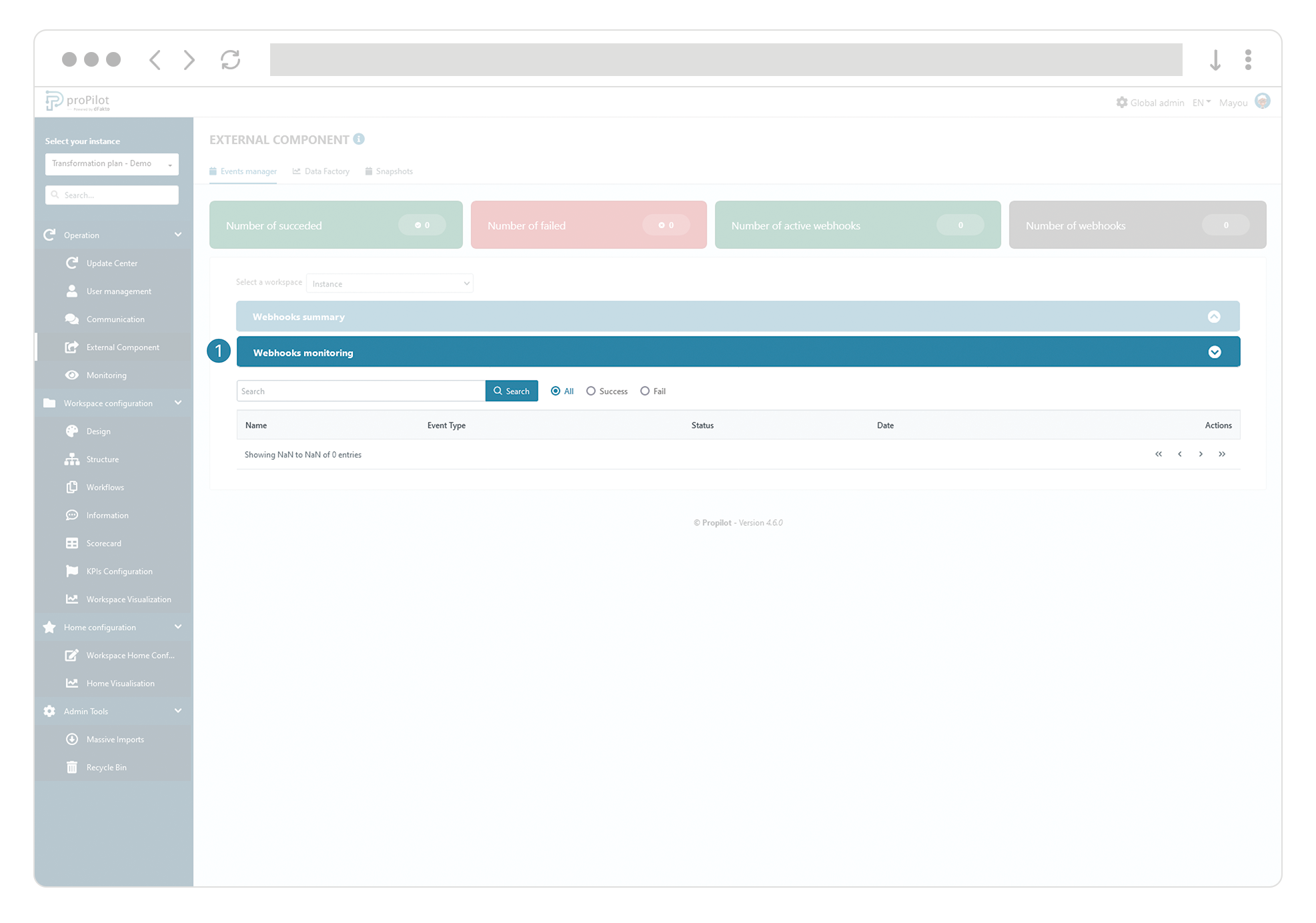
In the "Webhook Monitoring" section, you have the possibility to follow all the activity of your webhooks. As soon as an update related to your webhook occurs, a new line will appear in your webhook activity.